The New NLS DTB Player: A Compelling Upgrade
by Karl Belanger
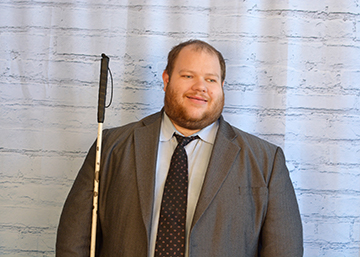 From the Editor: Karl Belanger has contributed many technology reviews and articles to these pages and other Federation publications over the years and has been a familiar presenter at both virtual and in-person technology demonstrations, boutiques, and seminars. This is his last contribution as a member of the Federation staff, but he tells me he hopes to contribute more as he can while pursuing new opportunities. Here is his review of the upgraded book player from our nation’s library service for the blind:
Introduction
The National Library Service for the Blind and Print Disabled has recently begun distributing the new Digital Advanced Player 2 (DA2) as an upgrade to the existing player. This new device provides a straightforward way for patrons of the National Library Service (NLS) to download books from the Braille and Audio Reading Download, (BARD) service. The new player also supports connecting to Bluetooth headsets. It still supports playback from the NLS cartridges, as well as audio files from a USB drive. This new player represents a significant upgrade, making the player much more viable for users who weren’t interested in the original player or are frequent BARD users.
Physical Description of the Player
If you are familiar with the original player, the new one is fairly similar. Most of the front edge is taken up by the cartridge slot. The handle of the player starts just to the left of the cartridge slot and wraps around until it is more than halfway up the left side. The large round speaker is in the top left corner of the player. The speaker sound is very clear and can get quite loud, so you should be able to hear your book just fine in a noisy environment or outdoors. The right side of the player has a headphone jack, a standard USB port, and a USB C port for charging and file transfer. One notable difference is that the player uses a USB C adapter for charging, rather than having a cord compartment on the back of the unit. The top of the player has a very similar layout to the older advanced player. The front edge has rewind, play/pause, and fast forward buttons. On the left side of the player there are Mode, Bookmark, and Bookshelf buttons going from front to back. Just above the Play button is the Sleep button, which lets you adjust the sleep timer. In the middle of the top face are triangular up/down/left/right buttons with an Info button in the middle. Across the back edge are three sets of up/down buttons to adjust the Tone, Volume and Speed respectively. Lastly, the power button is near the right side of the player and surrounded by a raised ring in the top surface. All the buttons are fairly large, rubberized, and easily identifiable by both shape and Braille labels.
Charging and Battery Life
The new NLS player changes things up by using a USB C charger. While you lose the convenience of the built-in cord, this new method brings a lot of flexibility. You are not limited to the included charger. If you’re away from a standard outlet, you can use a portable power bank to charge the player. Since the player’s battery is quite large, I’d recommend using one with a fairly high output to ensure the battery charges in a timely manner. That said, you’re not going to need to charge the player very often; the battery life is stellar, easily lasting over thirty hours on a charge. This was with Wi-Fi connected, searching and downloading several books, and general heavy usage. If you only listen to a book with Airplane Mode on and the volume relatively low, it will probably last for much longer.
Using the New Player
To turn the player on, press and hold the Power button for a second or two. You will hear a little jingle followed by a welcome announcement. After ten or fifteen seconds, the player will come up to the bookshelf. If there are no books in the internal memory, and a cartridge isn’t inserted, you will be placed in the key describer. Press any button to hear its function announced. Press and hold the bookshelf button to bring up the user guide.
Setting Things Up
When you first get the player, you will likely want to connect to Wi-Fi, log into BARD, and possibly pair a Bluetooth headset. Press and hold the Info button to get into the menu, and go to Settings. Under Wi-Fi Settings, you can scan for networks and select the one you want to connect to. It is possible, though a bit tedious, to enter the password using the player itself. You use the up and down arrows to move through letters, the Sleep button to enter them, and the Bookmark button to switch between lowercase, uppercase, numbers, and symbols keyboards. Holding down the arrows will let you jump a few items at a time, but it still takes a while, especially if the password is long. Fortunately, the player supports USB keyboards. Plug a keyboard into the USB port, and you can type in the credentials normally. Use left and right arrows to review what you’ve typed, and Backspace to delete characters. Enter submits the prompt. Once you’re connected to Wi-Fi, exit Settings and go to the NLS BARD menu option. Use the player or a keyboard to enter your email and password, and you’re good to go. Lastly, if you want to pair to a Bluetooth headset, go back into the settings, select Bluetooth, put your headset or speaker in pairing mode, and select it from the list.
Using BARD
Before we can listen to books, we need to download something. Press and hold Info to get into the menu, and select NLS BARD. Log in if you haven’t already. There are a number of options in the BARD menu including Search, Wishlist, Most Recent or Most Popular books, Recent Magazines, Previous Downloads, and Current Downloads. Selecting most of these options brings up a list of books. Use the left and right arrows to select one and press the Info button. This will bring up options to download the book, add it to your wishlist, get info including the book description, or close the menu. Once you have one or more downloads queued, you can view them in the Current Downloads option from the BARD menu. The player will download one book at a time, then proceed to the next. Once you have at least one book downloaded, or if you insert a cartridge, the bookshelf becomes available.
The Bookshelf
Once you have books available, you can access the bookshelf by either closing the menu or by pressing the Bookshelf button. You can use the left and right arrows to move through the books and Play to start reading. Pressing Info will read the book number, title, and author, and pressing Bookmark will prompt to delete the book. If a USB drive is plugged in, the player will scan the drive for books and announce “Refreshing bookshelf content” while doing so. It will then add any new books to the bookshelf. I plugged in an external 2TB hard drive with a number of audio files on it to see if the player could work with it. It took several minutes, but the player did eventually index the entire drive and found all the audio files. One downside to doing this is that if you turn the player off and back on, it needs to rescan the drive. If you have a drive with a number of NLS books on it, it may be worth copying them to the internal media if you plan to read them regularly.
Reading a Book
Once you’ve selected a book, you can press Play to read it. This functions exactly like the reader in the previous player. You can rewind and fast forward using the buttons or navigate among the navigation levels and chapters using the arrow keys. Pressing the Speed or Tone adjustments while a book is playing will adjust the settings for that book only.
Other Features of the Player
Aside from the main function of downloading and reading books, the player has a few other features worth mentioning.
Transferring Books from a Computer
You can connect the player directly to a computer to copy books to the internal storage. Before this will work, you need to turn on the Media Transfer Protocol (MTP) option in User Settings. Once this is done, the player will show up as an external drive on your computer. You can either copy books to the Books folder or copy zip folders to the Zipped Media folder. Doing the latter will cause the player to unzip the book once it is transferred.
Bluetooth Headsets
As mentioned previously, the NLS DA2 player can connect to Bluetooth headsets for listening to books. I found the pairing process to be straightforward, and there wasn’t much lag when navigating around the player. Unfortunately, it is not possible to use any of the controls on the Bluetooth headset or speaker to control the player. This somewhat undermines the point of using a Bluetooth device. The benefit of using Bluetooth is for personal listening at a distance from the player, and having to go back to it every time you want to adjust the volume or navigate within a book is not great. I am hopeful that this may change in a future update.
Controlling the Player with a USB Keyboard
In addition to entering text, you can also completely control the player using a USB keyboard. By default, only the arrow keys on the keyboard are mapped to the arrows on the player. In order to configure any other buttons, you must go into the Configure Key Bindings option in Settings and map a keyboard key to each player button. This could be useful if you’re doing a lot of searches on BARD and don’t want to have to keep switching back and forth from the keyboard to the player. This feature is also intended to work with switches or other nonstandard input devices, though I have not tested this.