American Action Fund for Blind Children and Adults
Future Reflections Special Issue on Technology GETTING STARTED
Passing It On: Learning and Teaching Access Technology
by Chuy Vaca
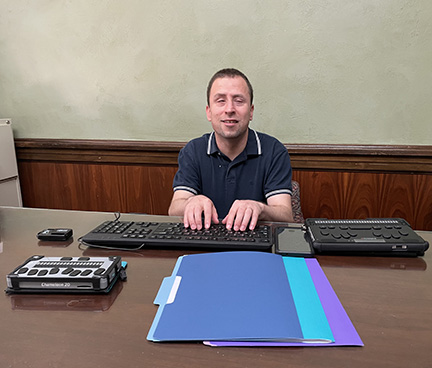 From the Editor: Chuy Vaca is an instructor at the Louisiana Center for the Blind (LCB) in Ruston, Louisiana. In this article he recounts his journey with access technology. He explains how his ever-growing knowledge serves him in his life as a teacher and parent. As a bonus, he introduces readers to some basic commands for accessing Windows, the iPhone, and the Mac computer.
My love of teaching didn’t start when I became an assistive technology instructor at the Louisiana Center for the Blind. It began more than two decades earlier with my love of music. The possibility of creating multitrack music using an electronic keyboard, JAWS for Windows, some specialized JAWS scripts, and a computer sparked my interest in technology. I was excited that previously inaccessible software was now within my reach, and I could create music whenever I wanted.
Eventually I found myself teaching other blind students to use specialized music software. I discovered that I enjoyed teaching, but I didn’t consider it as a possible career path. Then, in 2010, access technology took on a dual purpose in my life.
I had always used technology when I was a blind student. Then, working at summer youth programs at the Louisiana Center for the Blind, I got a second glimpse into the rewarding aspects of teaching. Eventually, I worked for an assistive technology distributor and pursued further studies in access technology, which strengthened my love for teaching. Today I still use and teach technology, but now life has added yet another dimension to my experience, as I have come to be a blind parent.
Learning to use a device doesn’t have to be complicated, as long as you take the learning process one step at a time. Before you rush out to buy a new piece of equipment, try using the technology you have at your disposal to accomplish the task at hand. In my case, I used two different technologies to get the job done in two different scenarios.
My first need for technology as a blind parent occurred at the beginning of the COVID-19 pandemic. Our oldest daughter was finishing kindergarten, and suddenly she needed to turn in her assignments virtually. She was five years old at the time, and she was still learning to read. Suddenly everything had shifted to remote learning. As a tech guy and as a parent, I took it upon myself to figure out how she could turn in her assignments along with the rest of her classmates. I ended up using my screen reader, an old flatbed scanner, and the Windows photo app to convert her homework from hard copy into digital form.
Fast forward five years. Recently my daughter, now a fifth grader, asked me to help her study for an upcoming social studies test. After thinking about it for a moment, I proceeded to use the VoiceOver screen reader on my iPhone, along with an app called VDScan, to convert the text on her worksheet into digital form. My goal was to listen to the questions on the study guide, using the VoiceOver screen reader, so I could help her review the material.
I put the paper on the table and took a picture, using my iPhone. Fortunately, the questions were typed, which made it easier for me to read the information. In a matter of seconds, I was able to read the study guide, using VoiceOver to navigate through the file. Without a hitch I was able to help my daughter with her studying.
I like using the VDScan app, (formally VoiceDream Scanner), for Apple devices. It is affordable, it only requires a one-time payment, and it works offline. Most importantly, it produces a fairly accurate representation of the text. Note that all scans that result from hard copy paper, on occasion, may contain some inaccurate characters, such as replacing the letter l for an I or the number 1. This problem occurs rather infrequently, and you can always take another scan to improve accuracy.
You don’t have to be an expert in technology to help your child or student. I would like to give you some tips on using the technology that you may have readily available to get you started.
The two most common pieces of technology are a Windows computer and an Apple iPhone, but I will also mention the Mac computer. I am omitting the use of Braille displays and Android devices for the sake of brevity. Before I get into specifics, I will share the three steps that I encourage my students to perform when learning to use any new piece of technology.
- First, explore the device by touch. Learn the names of the navigation keys and their functions, if the device has physical keys.
- Second, use on-board screen reader key discovery options. For example, press INSERT+F1 on Windows computers, and CONTROL+OPTION+K on Mac computers, to hear a description of various key commands. The level of information depends on the screen reader and the operating system that is used.
- Third, be willing to explore and go through menu options to see what they do.
Accessing a Windows Computer
Press CTRL+WINDOWS+ENTER to turn on the built-in Windows Narrator screen reader. Press Tab and Shift Tab to move forward and backward through the options. Press the Spacebar to check and uncheck boxes or to activate buttons. You can also press INSERT+F1 to find a description of keys without performing the action. Use CTRL+WINDOWS+ENTER to turn off the screen reader. Windows Narrator works much like other Windows-based screen readers, and it is a good tool for getting you started using a screen reader with a Windows computer.
Other helpful commands for Windows are INSERT+H for screen reader help (this works for Windows Narrator, NVDA, and JAWS). INSERT+W works when using JAWS for Windows, providing a list of Windows commands.
Accessing a Mac Computer
Press COMMAND+F5 to turn on the VoiceOver screen reader. Press CONTROL+OPTION+LEFT ARROW and CONTROL+OPTION+RIGHT ARROW to move forward and backward through different options on the screen. Press CONTROL+OPTION+SPACE to activate checkboxes and buttons. You can also press CONTROL+OPTION+H to bring up a list of help commands that can be activated once you find what you are looking for.
Using an iPhone with the VoiceOver Screen Reader
Use Siri to turn on the VoiceOver screen reader when accessing an iPhone for the first time. Activate Siri, then say, “Turn on VoiceOver.” Tap the screen twice with one finger to access the on-screen buttons. Tap the screen once with two fingers, as if making bunny ears on the screen, to stop VoiceOver from speaking. Move your finger around the screen to explore the icons by touch.
You can also use four fingers and tap the screen twice to enter and exit VoiceOver Help mode. VoiceOver Help mode allows you to practice swiping gestures such as moving your finger from left to right, up or down, and tapping the screen once with one, two, three, or four fingers. Similarly, tapping the screen one, two, three, or four times with each finger combination will produce different results.
Although this may sound complicated, try a couple of gestures at a time, using VoiceOver Help. Then practice those gestures with VoiceOver Help turned off. VoiceOver Help mode provides a description for the gesture that is being done, and it provides an environment where you can explore gestures without executing them.
For the time being, use Siri again if you wish to turn VoiceOver off. Just activate Siri and say, “Turn off VoiceOver.”
Make the learning process fun. Use the technology at your disposal to accomplish the task at hand before you look for another technology solution to resolve your issue. You might already have the solution in front of you and not even know it. On the other hand, if the technology isn’t meeting your child’s or student’s needs, it is time to consider other options. Make a list of three or four needs or considerations that are important, then start researching and comparing products that fulfill most of the qualifications and considerations on your priority list.
Remember that we are learning together as parents and educators. We have technology as a tool at our disposal, and we have each other as a resource.